

SEO
How to Request Indexing in Google Search Console, and When It Will Not Help
How to use the URL Inspection tool to request indexing in Google Search Console, and when it won't help.
You can request a live crawl of a specific URL using the URL Inspection tool within Google Search Console. This action asks Google to fetch the page immediately, bypassing the standard crawl queue. It does not guarantee the page will appear in search results, and it is subject to strict daily limits.
Many practitioners misinterpret the "Request Indexing" button as a guarantee of visibility. They submit new content and expect it to rank within hours. When the page remains hidden, they blame the tool. In reality, the request only triggers a crawl. If the page lacks authority or faces technical blocks, Google will not index it regardless of the manual nudge.
What Is the URL Inspection Tool and How Does It Work?
The URL Inspection tool is the primary interface for interacting with Google's crawler on a page-by-page basis. It provides real-time feedback on how Google views a specific resource. When you enter a URL, the tool performs a live test to determine if the page is accessible and indexable.
The tool displays the mobile and desktop versions of the page as Google sees them. It highlights issues such as blocked resources, missing meta tags, or server errors. If the page passes these checks, the "Request Indexing" button becomes active. Clicking this button submits the URL to the high-priority crawl queue.
Google Search Console sets a daily limit on URL Inspection requests and a separate daily limit on live inspections for each property. This cap prevents abuse and ensures the system remains stable for all users. You cannot exceed these limits, so you must choose which URLs are most critical. The request tells Google to prioritize crawling that specific page, but it does not instruct Google to index it. Indexing is a separate decision based on the page's quality and relevance.
How to Batch-Request Indexing for Large E-Commerce Catalogs
For sites with thousands of product pages, manual requests are impossible. The recommended core angle for large-scale operations involves using the Google Search Console API. This allows developers to script the inspection and indexing request process.
You can use the urlInspection endpoint to submit URLs programmatically. The API has its own quota limits, which are higher than the manual interface but still finite. You must build a queue system that respects these quotas and tracks the status of each request.
A practical workflow for a large e-commerce site involves:
- Identifying new or updated product pages that are not yet indexed.
- Filtering this list to exclude pages with technical errors like 404s or soft 404s.
- Prioritizing pages with existing backlinks or high internal link equity.
- Submitting these URLs in batches via the API, spacing requests to avoid hitting rate limits.
- Monitoring the response status for each URL to identify failures.
This approach is far more efficient than manual submission. It allows you to handle hundreds of URLs per week without exhausting the daily limit of the manual tool. However, it requires technical expertise in API integration and error handling.
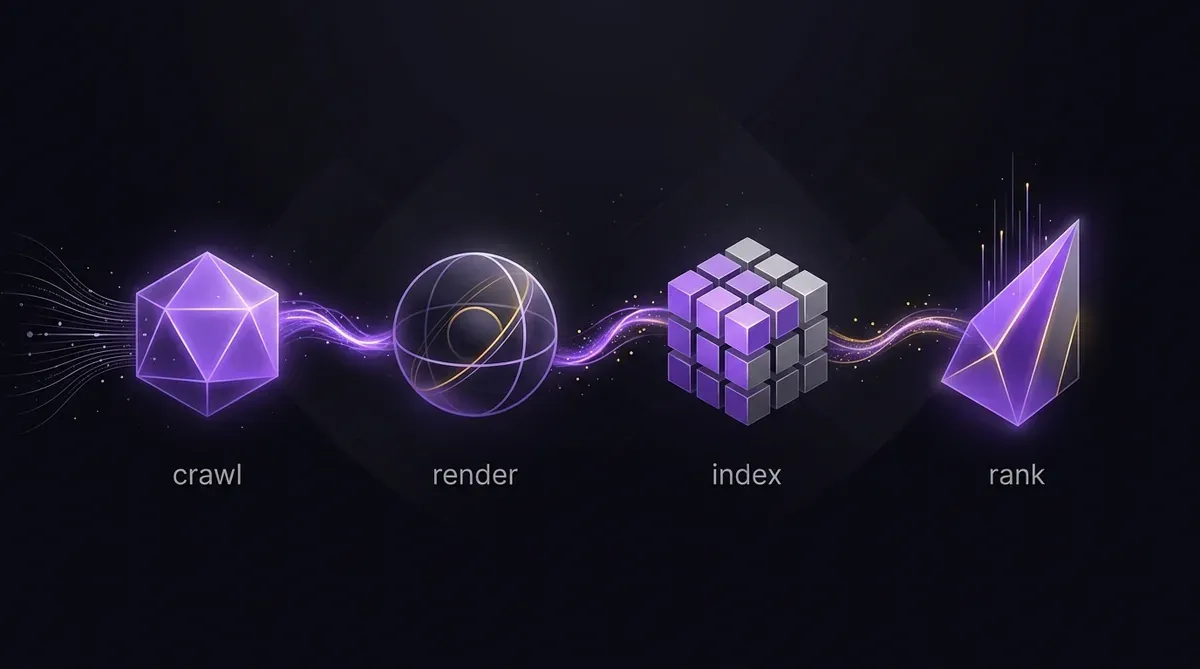 The workflow shows that Google Search Console request indexing only accelerates the crawl‑to‑index stage and cannot influence later ranking factors.
Why "Discovered - Currently Not Indexed" Is Not an Error
A common frustration is seeing the status "Discovered - currently not indexed" in the Page indexing report. This status means Google has found the URL but has not added it to its index. It is not an error message indicating a problem with the page.
Google Search Console is a free service offered by Google that helps site owners monitor, maintain and troubleshoot their site's presence in Google Search results. The "Discovered" status often occurs for new content or pages with low authority. Google may also delay indexing if it detects that the content is not valuable to users.
On 29 September 2026, our Search Console showed 99 of our English posts as Discovered - currently not indexed. We responded by publishing at most three posts a week and linking each new post from posts Google had already indexed. We do not claim any result from this strategy yet, as it is too early to measure. However, the principle is sound: internal links from indexed pages provide a clear path for the crawler and signal relevance.
You can check the status of your pages in the Page indexing report. This report breaks down your URLs into categories such as "Indexed," "Duplicate, Google chose different canonical," and "Crawled - currently not indexed." Understanding these categories helps you diagnose why a page is not appearing.
Which Mistakes Prevent Requested Pages from Being Indexed?
Requesting indexing does not fix technical issues. If the page has errors, Google will not index it. Common mistakes include:
Robots.txt Blocking: If your robots.txt file disallows the crawler from accessing the URL, the request will fail. You must ensure the path is not blocked.
Noindex Tags: A meta noindex tag or an X-Robots-Tag header will prevent indexing. Check your source code to ensure these tags are absent.
Server Errors: 404 (Not Found) or 5xx (Server Error) responses stop the indexing process. Fix your server configuration before requesting a crawl.
Duplicate Content: If Google sees the page as a duplicate of another URL, it may not index it. Use canonical tags to specify the preferred version.
Lack of Internal Links: Pages with no internal links pointing to them are harder for Google to discover and evaluate. Ensure new pages are linked from existing, indexed pages.
How to Tell Whether Request Indexing Is Working?
You can monitor the effectiveness of your indexing requests by tracking changes in the Page indexing report. Wait at least 24 to 48 hours after the request before checking the status. If the status changes from "Discovered" to "Indexed," the request was successful.
You can also check the Performance report in Google Search Console. If the page starts receiving impressions and clicks, it is likely indexed. The Performance report shows how your site is performing in Google Search, breaking down data by query, page, country, and device.
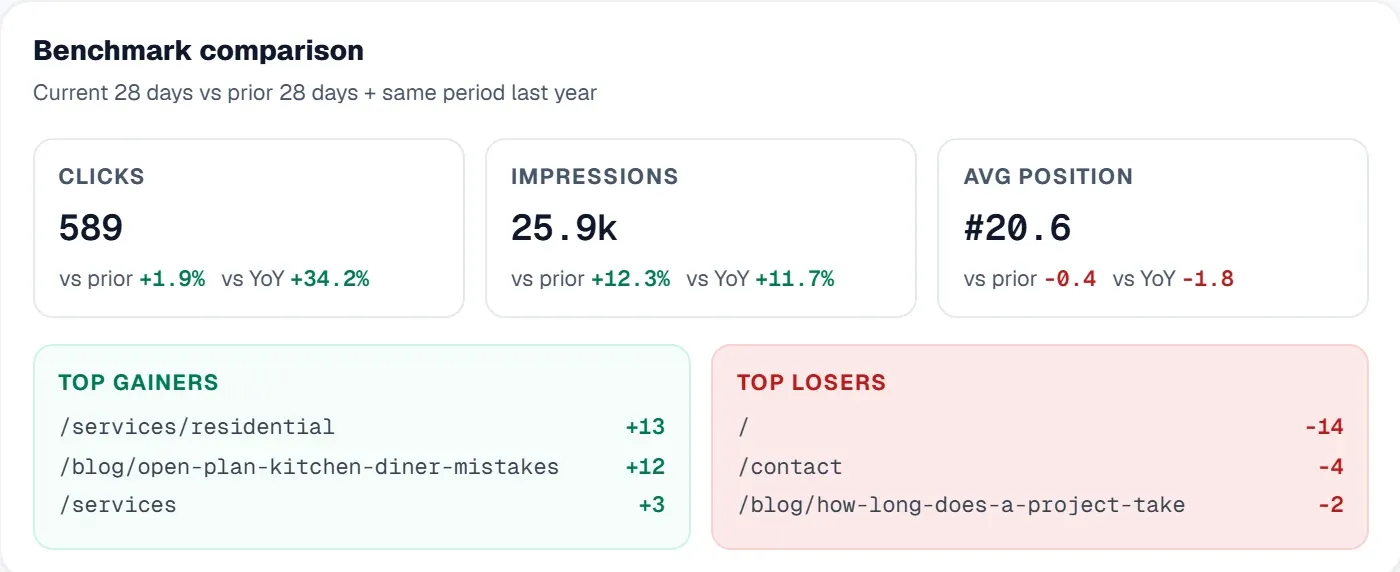 The UtilitySEO dashboard puts Search Console clicks, impressions, average position and click-through rate in one view, with the pages gaining and losing most.
Using a tool like UtilitySEO allows you to join Search Console data with your own tracking metrics. The SEO Monitoring Tool provides alerts for ranking and indexation changes, helping you spot when a page moves from "Discovered" to "Indexed" without manually checking the dashboard daily.
When Will Request Indexing Not Help?
Request indexing is not a magic solution. It will not help in the following scenarios:
Low Quality Content: If the content is thin, duplicate, or irrelevant, Google will not index it. Focus on creating valuable, original content first.
New Domain Authority: A new domain with no backlinks or trust signals may take longer to index. Building external authority takes time.
High Competition: If the target keyword is highly competitive, Google may prioritize other sites. Requesting indexing does not override ranking algorithms.
Technical Blocks: As mentioned, robots.txt and noindex tags will always prevent indexing. Fix these issues first.
Scale Limits: For very large sites, manual requests are inefficient. Use the API or focus on high-value pages only.
You can learn more about how to use Search Console effectively in our guide to Maximizing Google Search Console. This resource covers advanced features and best practices for leveraging the platform.
Sources
Summary
Requesting indexing in Google Search Console is a useful tool for triggering a live crawl of specific URLs. It works by submitting the URL to a high-priority queue, but it does not guarantee that the page will be added to the index. The success of the request depends on the page's technical health, content quality, and internal linking structure. For large sites, using the API allows for batch processing, while manual requests are best for high-priority individual pages. Monitor the Page indexing report to track changes and address any technical issues that may be blocking indexing.
Frequently asked questions
You can request indexing for a single URL using the URL Inspection tool in Google Search Console.
- Open the URL Inspection tool and enter the page address.
- Click “Test live URL” to see current index status.
- Press “Request indexing” if the page passes the test.
- Wait up to 48 hours for Google to crawl the page.
The request indexing button appears greyed out when Google detects issues preventing the page from being indexed.
- Page returns a 404 or server error.
- Robots.txt or meta tag blocks crawling.
- Mobile‑first rendering shows critical resources blocked.
- Daily request limit has been reached for your account.
Yes, you can batch request indexing for many pages through the Google Search Console API’s urlInspection endpoint.
- Set up API credentials and enable the Search Console API.
- Send URLs in batches respecting quota limits.
- Track each request’s response status.
- Schedule submissions to avoid hitting daily limits.
Google Search Console request indexing imposes daily limits on both manual and API submissions.
- 5 live URL inspections per property per day via UI.
- 200 URL inspection requests per day via the API.
- Additional quota for high‑priority crawl queue.
- Exceeding limits disables the request button until reset.
Requesting indexing will not help if the page fails Google’s quality or technical criteria for inclusion.
- Content is thin, duplicate, or low‑value.
- Page has no inbound links or internal equity.
- Persistent crawl errors or blocked resources remain.
- Manual actions or penalties are applied to the site.
Know what to fix next.
Scan your site for a clearer place to start.
About 30 seconds. No card needed.