

SEO
Google Search Console: Get More from Your Data
Go beyond the basics of Google Search Console. Extract actionable insights from your first-party search performance data.
Google Search Console Integration: Getting the Most from Your Data
Google Search Console is the single most reliable source of keyword and search performance data available to SEO practitioners. It is first-party data straight from Google, not estimated, not scraped, not modeled. Yet most people only scratch the surface of what GSC offers, typically glancing at a few charts and moving on.
The real value of GSC data emerges when you integrate it with an SEO platform that can store, segment, and combine it with other data sources. This guide covers what GSC provides, how to connect it to your SEO workflow, and the specific techniques for extracting insights that GSC alone makes difficult to surface.
Why Google Search Console Is the Foundation of Keyword Tracking
Before exploring the integration, it is worth understanding why GSC data occupies a unique position in the SEO data ecosystem.
What Data GSC Provides (and What It Does Not)
GSC provides:
- Search queries. The actual terms people searched before seeing your page in results. This is not estimated or inferred, it is logged by Google.
- Impressions. How many times your pages appeared in search results for each query.
- Clicks. How many times users clicked through to your site from search results.
- Average position. Your average ranking position for each query over the selected time period.
- Click-through rate (CTR). The ratio of clicks to impressions for each query.
- Page-level data. All of the above, segmented by the specific URL that appeared in results.
- Device, country, and search type filters. Segment performance by mobile vs. desktop, geographic market, and web vs. image vs. video search.
- 16 months of historical data. Enough to compare year-over-year performance and identify seasonal patterns.
GSC does not provide:
- Real-time data. There is a 2-3 day lag between when a search happens and when it appears in GSC. You are always looking at data from a few days ago.
- Complete query data. Google anonymizes low-volume queries for privacy. If a search term has very few impressions, it may not appear in your data at all.
- Unlimited export. The web interface limits exports to 1,000 rows. The API offers more, but requires technical setup.
- Competitor data. GSC only shows your own performance. You cannot see where competitors rank.
- Conversion data. GSC tracks clicks to your site, not what happens after. For conversion data, you need analytics integration.
GSC Data vs. Third-Party Rank Trackers
Third-party rank trackers and GSC serve complementary purposes. Understanding the differences helps you use each appropriately.
| Dimension | Google Search Console | Third-Party Rank Trackers |
|---|---|---|
| Data source | First-party (Google's own data) | Scraped or API-based SERP checks |
| Accuracy | Definitive for impressions and clicks | Position estimates that may differ from actual user results |
| Query coverage | Shows queries you actually appeared for | Tracks only the keywords you specify |
| Update frequency | 2-3 day lag | Daily or on-demand |
| Competitor data | No | Yes |
| Historical depth | 16 months | Varies by tool |
| Cost | Free | Paid |
The best keyword tracking setups use both: GSC for ground truth on your own performance, and a platform layer for daily tracking, competitor comparison, and historical analysis beyond 16 months.
How to Connect GSC to an SEO Platform
Integrating GSC with an SEO platform eliminates the manual export cycle and unlocks analysis capabilities that the GSC web interface cannot provide.
Setting Up the Integration
The connection process varies by platform, but the general steps are consistent:
- Authenticate with Google. You will be prompted to sign in with the Google account that has access to your Search Console property.
- Select your property. Choose the GSC property (domain or URL prefix) that matches the site you want to analyze.
- Grant permissions. The SEO platform requests read-only access to your GSC data. This does not give the platform write access, it cannot modify your settings, submit URLs, or change anything in your Search Console.
- Confirm data sync. After connecting, allow time for the initial data import. Depending on the platform, this may take a few minutes to several hours for the full historical dataset.
In UtilitySEO, the process takes about 60 seconds. Navigate to your Workspace settings, select Google Search Console under integrations, authenticate with Google, and choose your property. UtilitySEO syncs your historical data and then keeps pulling new data going forward.
Verifying Data Is Flowing Correctly
After connecting, verify the integration is working:
- Check date ranges. Confirm that data appears for recent dates (accounting for the 2-3 day GSC lag).
- Compare a sample query. Look up a specific keyword in both GSC directly and in your SEO platform. The impressions, clicks, and position should match for the same date range.
- Verify property coverage. If you have multiple GSC properties (e.g., separate properties for
wwwand non-www, or for different subdomains), make sure the correct one is connected.
Permissions and Access Levels
GSC has two permission levels: Owner and User (with Full or Restricted variants). For an SEO platform integration:
- Full User access is sufficient for data reading. The platform needs to pull query data, page data, and coverage information.
- Owner access is not required for data integration, but is needed if the platform also submits sitemaps or requests URL indexing on your behalf.
- Restricted User access limits data visibility and may prevent the integration from pulling complete performance data.
For agencies managing client sites: Ask clients to add your Google account as a Full User on their GSC property. This gives you the data access you need without requiring client credentials.
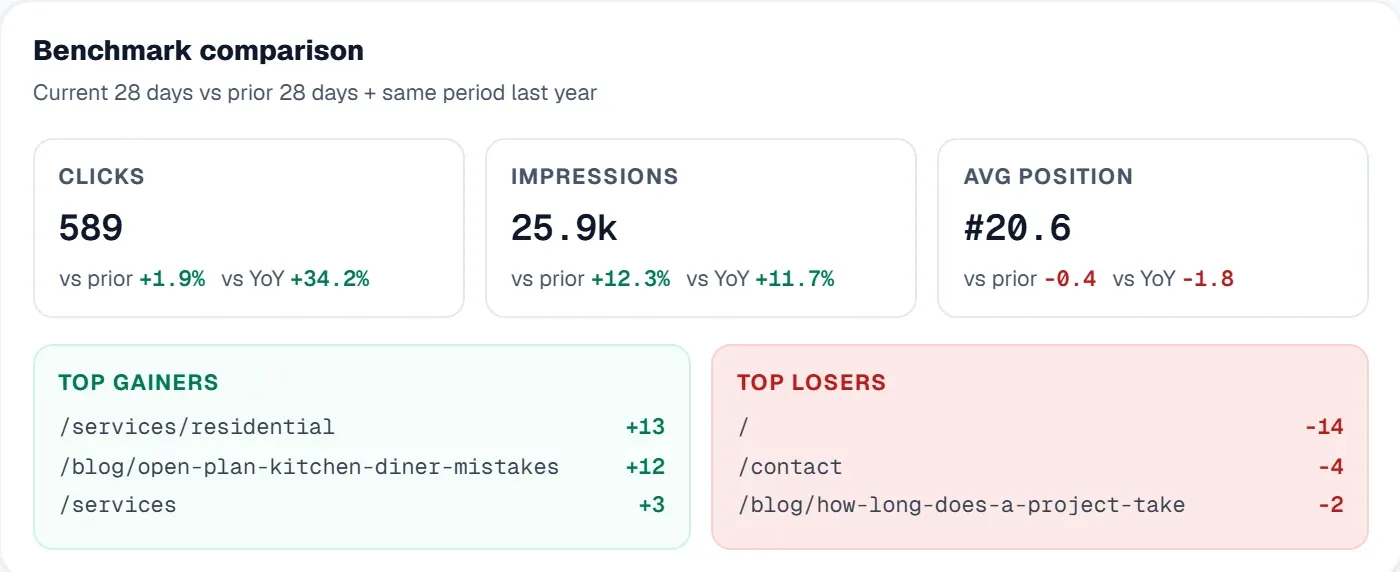 The UtilitySEO dashboard puts Search Console clicks, impressions, average position and click-through rate in one view, with the pages gaining and losing most.
Getting More from Your GSC Data
Here is where integration pays off. These techniques are tedious or impossible in the GSC web interface but become straightforward when your data is centralized in an SEO platform.
Discovering Keywords You Did Not Know You Ranked For
GSC reveals every query where your site appeared in search results, including queries you never intentionally targeted. These "accidental rankings" are gold mines for content optimization.
How to find them:
- Open your keyword performance data and filter for queries with high impressions but no matching content brief or target keyword list entry.
- Sort by impressions (descending) to prioritize the highest-opportunity queries.
- Identify the ranking page for each query. Is it the most relevant page on your site? If not, you may have an opportunity to create dedicated content or optimize an existing page.
Example: You publish a blog post about site audit best practices. GSC shows you are receiving 500 impressions per month for "how to audit schema markup", a query you never targeted. That is a signal to either add a schema audit section to your existing post or write a dedicated cluster article on the topic.
In UtilitySEO, your Keyword Tracking dashboard automatically surfaces these queries alongside your intentionally tracked keywords, making discovery a passive process rather than an active excavation.
Finding High-Impression, Low-CTR Opportunities
Pages with many impressions but low CTR are ranking well enough to appear in search results but not compelling enough to earn clicks. This is one of the most actionable insights GSC provides.
How to identify them:
- Filter your query data for impressions above a meaningful threshold (500+ per month is a reasonable starting point, adjust based on your site's traffic level).
- Sort by CTR ascending to surface the queries with the lowest click-through rates.
- Cross-reference with average position. A low CTR at position 30 is expected, there is nothing to fix. A low CTR at position 5 is an optimization opportunity.
What to do with these findings:
- Rewrite the title tag. Frontload the keyword, add a benefit or number, and test a more compelling format.
- Improve the meta description. Make it specific, action-oriented, and clearly differentiated from competitors.
- Add structured data. FAQ schema, review stars, or how-to markup can enhance your SERP appearance and increase CTR.
Segmenting Data by Page, Query, and Device
The power of integrated GSC data lies in segmentation. Instead of looking at site-wide averages, slice the data to reveal specific patterns.
By page: Which pages drive the most search traffic? Which pages have declining impressions? Are any high-value pages losing position?
By query: Which keywords are growing in impressions (indicating rising search demand)? Which keywords have unstable positions (possible cannibalization)?
By device: Is your mobile CTR significantly lower than desktop? That could indicate a poor mobile SERP snippet or a slow-loading mobile experience. Are certain pages performing better on mobile than desktop, or vice versa?
Combined segments: The most useful analysis often combines dimensions. For example: queries where mobile average position is 3+ positions worse than desktop may indicate pages with mobile rendering issues that search engines are penalizing.
Combining GSC Data with Other SEO Metrics
GSC data becomes exponentially more useful when layered with other data sources. This is the primary advantage of integrating GSC into an SEO platform rather than using it standalone.
Layering Audit Data on Top of Search Performance
Your site audit reveals technical health issues. Your GSC data reveals search performance. Combining them answers a critical question: Are technical issues actually hurting my traffic?
Practical workflow:
- Run a Site Audit in UtilitySEO to identify pages with technical issues (slow load time, missing meta tags, broken internal links).
- Pull GSC performance data for those same pages.
- Look for correlations: Are pages with slow LCP also seeing declining impressions? Do pages with missing title tags have CTR below benchmark?
This combination lets you prioritize technical fixes by traffic impact. A slow page with 10,000 monthly impressions is a higher priority than a slow page with 50 impressions, even if both have the same Core Web Vitals score.
For a complete audit walkthrough, see The Complete Guide to Site Audits in 2026.
Cross-Referencing Position Data with Content Changes
When you update a blog post, rewriting sections, adding new headings, improving examples, you want to know whether the update improved search performance.
How to measure content update impact:
- Record the date and scope of each content update.
- Pull position and CTR data for the page's target keywords for the 30 days before and after the update.
- Compare average position, impressions, and clicks.
- Account for external factors: Was there a Google algorithm update during the same period? Did a competitor publish competing content?
This analysis is tedious if you are manually exporting GSC data every time. With an integrated platform, you can set date comparisons and view the trend directly in your dashboard.
Setting Up Automated GSC Reports
If you report on search performance to stakeholders, clients, or your own team, automating the process saves hours of monthly reporting effort.
What automated GSC reports should include:
- Traffic summary: Total organic clicks and impressions vs. previous period
- Top performing queries: Keywords driving the most clicks
- Biggest movers: Keywords with the largest position changes (up and down)
- Top pages by traffic: Your highest-traffic organic landing pages
- New queries: Keywords that appeared in your data for the first time
- CTR analysis: Pages with above- or below-average CTR for their position range
How to set up automated reporting:
- Configure a report template with the metrics and segments above.
- Set a delivery schedule (weekly for active campaigns, monthly for ongoing monitoring).
- Choose your recipients, your own inbox, your team, or your client.
UtilitySEO's Email Digest feature handles this automatically. Connect your GSC data, configure your report preferences, and the platform delivers formatted summaries on your chosen schedule. No manual data pulling, no spreadsheet formatting, no slide decks.
For more on building effective SEO reports, read The Definitive Guide to SEO Reporting. For a broader view of keyword tracking beyond GSC, see The Ultimate Guide to Keyword Tracking for SEO.
Your GSC data has more to offer than what you see in the default dashboard. Connect your Google Search Console to UtilitySEO and unlock deeper keyword insights, filter, segment, and combine your search data with audit and backlink metrics in one Workspace. Free to start. Connect your Search Console.
Frequently asked questions
Google Search Console is the most reliable source of first-party keyword and search performance data directly from Google, crucial for understanding your site's organic visibility.
- It provides actual search queries, impressions, and clicks.
- Data helps identify which pages appear in search results.
- Essential for monitoring your website's overall health in Google Search.
- It is first-party data, not estimated or inferred.
Google Search Console provides critical first-party data including actual search queries, impressions, clicks, average position, and click-through rate for your web pages.
- Access page-level performance data for specific URLs.
- Filter data by device, country, and search type.
- Review up to 16 months of historical performance data.
The main limitations of Google Search Console data include a 2-3 day reporting lag, anonymization of low-volume queries, and restricted export capabilities.
- It does not offer real-time data or complete query sets.
- You cannot see competitor performance or conversion data.
- Web interface exports are limited to 1,000 rows.
Google Search Console offers first-party performance data directly from Google, whereas third-party rank trackers provide estimated rankings and competitor insights.
- GSC shows actual impressions and clicks your site received.
- Rank trackers estimate positions for a set list of keywords.
- GSC focuses on your site's actual performance.
- Both are complementary for a comprehensive SEO strategy.
Integrating Google Search Console data with an SEO platform enhances storage, segmentation, and combination with other sources, unlocking actionable insights.
- Combine GSC data with analytics for conversion tracking.
- Use an SEO platform to overcome GSC's export limits.
- Segment data to identify hidden performance trends.
- This integration unlocks deeper analysis capabilities.
Know what to fix next.
Scan your site for a clearer place to start.
About 30 seconds. No card needed.