

SEO
GA4 Reports: What Every SEO Should Know
Master GA4 reports and translate data into business results with actionable strategies and common mistake guidance.
Understanding GA4 reports is no longer optional for modern SEOs. Google Analytics 4 has fundamentally changed how we measure website performance, track user behaviour, and prove the impact of our optimisation efforts. Yet many SEOs struggle to interpret what GA4 reports actually tell them, leading to missed opportunities and poor strategic decisions. This guide covers what GA4 reports are, how to read them correctly, common pitfalls to avoid, and how to connect your data to real business outcomes.
What GA4 Reports Actually Are
GA4 reports are collections of data visualisations that show how users interact with your website. Unlike the older Universal Analytics, GA4 is entirely event-based, meaning it tracks individual user actions rather than just pageviews. This shift requires a different way of thinking about your data.
GA4 organises its standard reports into three main sections: Realtime, Lifecycle, and User. The Realtime section shows activity happening right now (within the last 30 minutes), giving you a live pulse on your site. The Lifecycle section follows users through Acquisition, Engagement, Monetisation, and Retention stages. The User section breaks down audience demographics and characteristics.
Each report is built from dimensions (categorical data like source, device type, or country) and metrics (quantitative data like sessions, users, or conversion rate). Understanding this structure helps you navigate GA4 confidently and know which report to check for different questions.
Common Mistakes When Reading GA4 Reports
This is where most SEOs go wrong. GA4 reports can mislead you if you don't understand their limitations and quirks.
Session definitions have changed. In Universal Analytics, a session typically lasted 30 minutes. In GA4, a new session starts when a user arrives from a new source or after midnight. This means your session count in GA4 will look very different from your old data, even for the same traffic. Don't panic and assume you've lost traffic. Check your user count instead, which is often more stable.
Direct traffic is inflated. If a user has no referrer information, GA4 marks them as direct. This happens far more often than it did in Universal Analytics, especially on mobile and from certain apps. Your true direct traffic is likely lower than what GA4 reports. Cross reference with Google Search Console to see which of your direct visitors actually came from search.
Report data is often incomplete. GA4 samples data when your property receives more than 10 million events in a 24-hour period. Free accounts get sampled data more frequently. This doesn't mean your data is wrong, but it's an approximation. Always look for the sampling indicator in the upper right of your reports.
Conversions require explicit setup. GA4 doesn't automatically know what a conversion is. You must mark specific events as conversions in your GA4 settings. Many businesses forget to do this, so their Monetisation reports show zero conversions even though transactions are happening. Check your conversion settings first before drawing conclusions from conversion data.
Organic traffic attribution depends on your setup. If you've connected your Google Search Console data to GA4, you'll see richer organic traffic insights. If not, organic traffic is attributed loosely, and you lose valuable keyword and search query information. The integration is critical for SEOs.
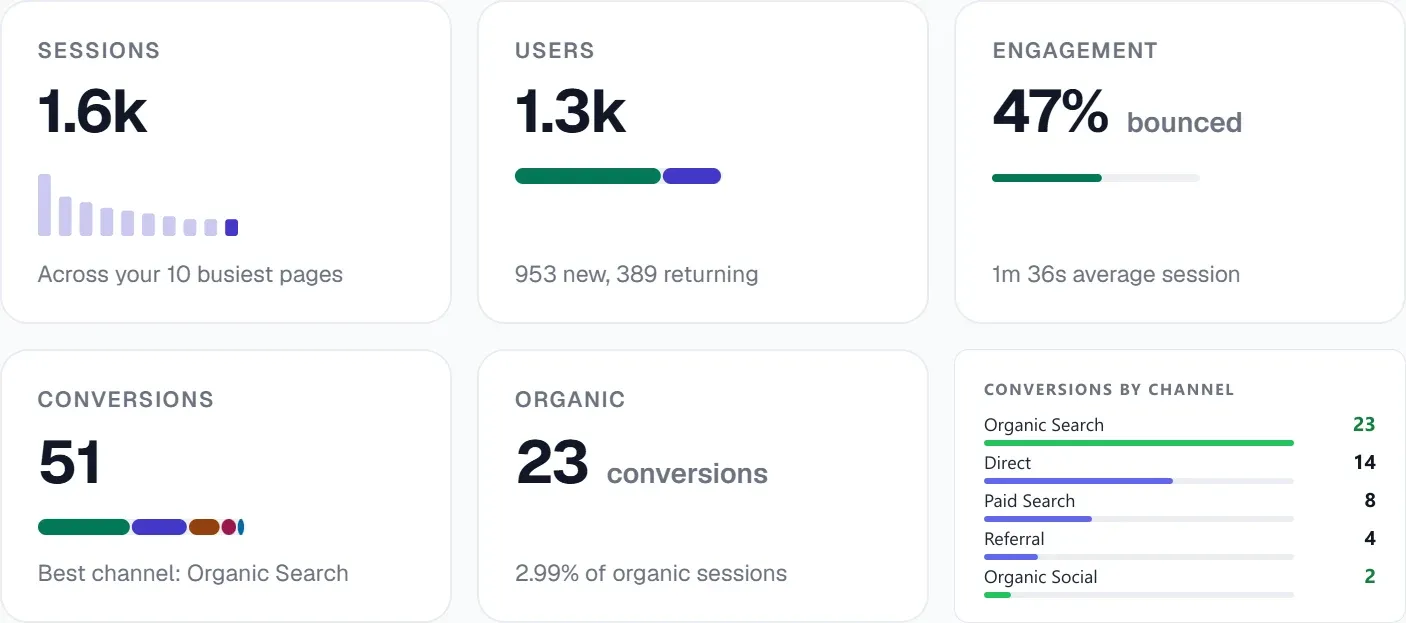
Why GA4 Reports and Google Search Console Data Tell Different Stories
This confusion trips up countless SEOs. GA4 and Google Search Console often show different traffic numbers, and that's completely normal.
Google Search Console shows impressions, clicks, and average position for search queries that brought users to your site. These numbers are pulled directly from Google's search results. GA4 shows what happens after those users arrive on your website: sessions, pageviews, engagement, and conversions.
A single search query click might result in multiple GA4 sessions if the user visits multiple times. Conversely, GA4 might attribute traffic to direct or other sources that actually came from search, due to the referrer missing. Google Search Console patterns show your true search visibility, whilst GA4 shows actual user behaviour post-click.
Use both. Search Console data reveals where you're winning in search. GA4 data reveals whether those visitors actually convert. Neither alone tells the full story.
Connecting GA4 Reports to Real Business Impact
Here's the critical gap most analyses miss: showing up in GA4 reports means nothing if it doesn't move the business forward.
Start by defining what success looks like for your site. Is it form submissions? Product sales? Account signups? Content consumption time? Mark these as conversions in GA4 so your Monetisation and Engagement reports actually measure what matters.
Next, work backwards from conversions. Which pages do converting users visit? Which traffic sources bring high-value users? Which devices drive the most revenue? GA4's Explorations feature lets you build custom reports that answer these questions. Use dimensions and segments to slice your data by meaningful business variables.
Then, calculate revenue per session or per user for different channels and landing pages. A traffic source that brings 1000 sessions might be worthless if none convert. Another might bring 100 sessions but generate thousands in revenue. Your GA4 data can reveal this, but you need to look beyond raw traffic numbers.
Document your current baselines. If organic traffic currently converts at 3% with an average order value of £50, organic contributes roughly £1.50 per session. When you improve your SEO and organic conversion rate rises to 4%, you've generated measurable value. GA4 reports let you track this impact over time.
Setting Up GA4 Reports for SEO Success
To extract maximum value from GA4 reports, configure them correctly from the start.
Link Google Search Console. This is non-negotiable. Go to Admin > Data Streams > your web stream > Google Search Console links. This enriches your organic traffic reports with actual search query data, impressions, and click-through rates. Without this, your organic traffic insights are vague.
Create custom segments for important user types. If you want to compare new vs returning users, mobile vs desktop, or free vs paid users, set up segments in GA4. Then filter your reports by these segments to spot behavioural differences. Paid users might convert at 10% whilst free users convert at 2%, for example. GA4 standard reports don't always highlight these gaps clearly.
Mark your conversions explicitly. Navigate to Admin > Conversions and select which events should count as conversions. Common examples are purchase events, form submissions, and sign ups. Once marked, these show in your Monetisation reports and influence your attribution modelling.
Use the Pages and Screens report for SEO-specific insights. This report shows engagement metrics (average engagement time, bounce rate, conversions) per page. Filter by organic traffic and sort by pages with high impressions but low conversion rate. These are quick wins for SEO optimisation.
Set up real-time monitoring for critical traffic patterns. The Realtime report is useful beyond novelty. Use it to monitor traffic during product launches, major PR campaigns, or after publishing new content. If you expect a traffic spike and don't see it, troubleshoot immediately rather than finding out days later in your weekly report.
How UtilitySEO Bridges GA4 Reports and Your SEO Strategy
Understanding GA4 reports is one thing; acting on them quickly is another. UtilitySEO connects your GA4 data with your broader SEO efforts so you can spot opportunities and problems faster.
UtilitySEO's GA4 analytics module pulls your organic traffic, sessions, and conversions directly into a unified dashboard. Rather than switching between GA4 and Google Search Console, you see your search performance alongside your traffic behaviour in one place. The GA4 active users panel shows real-time visitor counts, helping you track the immediate impact of content updates or keyword optimisations.
More importantly, UtilitySEO's keyword tracking uses GSC-powered data to show you rankings, impressions, and clicks. You can then cross-reference these with your GA4 conversion data using the platform's export tools. This tells you which keywords drive not just traffic, but conversions. A keyword might rank third with 100 monthly impressions, but if it drives zero conversions, it's not a priority.
The Pages tab in UtilitySEO includes GSC page performance data with index status and mobile usability checks. View each page's search visibility, then check how those pages perform in GA4 to understand the full user journey from search to conversion.
UtilitySEO's site audit flags technical issues that might inflate your GA4 bounce rate or prevent Google from crawling your content properly. A page showing high impressions in Search Console but minimal sessions in GA4 might have a crawl issue, redirect chain, or poor mobile experience. The audit surface these problems so you can fix them and unlock the conversion potential that's already there in your search visibility.
If you're migrating from Universal Analytics to GA4 or struggling to interpret conflicting data, UtilitySEO's interface lets you export GA4 data and compare it against your Google Search Console patterns. This helps you spot data inconsistencies early and understand whether a dip is real or a reporting artefact.
Visit the workflow page to see how GA4 insights fit into a complete SEO optimisation process, or explore our pricing to find a plan that includes GA4 analytics integration.
Best Practices for Reading GA4 Reports Consistently
Treat GA4 report analysis as a regular habit, not a one-off check. Set a review cadence based on your traffic volume and business cycle.
For high-traffic sites with daily changes, review key reports twice a week: Realtime to catch problems early, Pages and Screens to spot performing pages, and Monetisation to track conversion trends. For medium-traffic sites, a weekly review usually suffices. For low-traffic sites, monthly reviews prevent data sampling noise from misleading you.
Create a checklist of reports to review each cycle. At minimum, check organic traffic volume, conversion rate, average engagement time, and top landing pages. Then dig deeper based on your current SEO priorities. Are you targeting a new keyword cluster? Check that cluster's traffic and conversion behaviour. Did you refresh a popular page? Compare its session and engagement metrics before and after the refresh.
Document your findings in a shared report or spreadsheet. Note what changed, why you think it changed, and what action you're taking. This creates accountability and helps you avoid making the same mistakes twice.
Finally, remember that GA4 reports show correlation, not causation. If organic traffic drops after a search algorithm update, GA4 shows the drop, but it doesn't prove the algorithm update caused it. You need Google Search Console patterns and your site audit logs to understand what actually happened. Use multiple data sources to build your narrative.
Conclusion
GA4 reports are essential for modern SEOs, but they're only useful if you read them correctly and connect them to business outcomes. Avoid the common pitfalls of misinterpreting session counts, assuming direct traffic is real, and ignoring the setup required for conversions and GSC integration. Instead, use GA4 to answer business-critical questions: which traffic sources convert best, which pages drive the most revenue, and where your SEO efforts are actually moving the needle.
For a complete view of your SEO performance, combine GA4 reports with your Google Search Console data and technical audits. This combination reveals where you rank, whether users click, and whether they convert. Start with UtilitySEO's GA4 analytics integration to unify these data sources in one place, then use your reports to prioritise optimisation work that has proven business value.
Frequently asked questions
GA4 reports are data visualizations that show how users interact with your website, fundamentally based on an event-driven data model.
- Unlike Universal Analytics, GA4 tracks individual user actions as events.
- They are organized into Realtime, Lifecycle, and User sections.
- Each report uses dimensions (categories) and metrics (quantities).
GA4 reports differ significantly from Universal Analytics by tracking all user interactions as events rather than session-based hits and pageviews.
- GA4's session definitions are different, potentially altering session counts.
- It offers enhanced cross-device tracking and predictive capabilities.
- The data model focuses on users and their journeys.
Your direct traffic may appear inflated in GA4 reports because the platform attributes more traffic as direct when referrer information is unavailable, common on mobile.
- This often happens from certain mobile apps and specific browsers.
- GA4 assigns "direct" when no clear source data exists.
- Cross-reference with Google Search Console for true organic direct.
To ensure GA4 reports accurately track conversions, you must explicitly mark specific events as conversions within your GA4 property settings.
- GA4 does not automatically define what a conversion is.
- Identify key user actions like purchases or form submissions.
- Enable these events as conversions in the Admin section.
GA4 reports may not always show complete data because sampling occurs when a property exceeds 10 million events in a 24-hour period.
- Free GA4 accounts experience data sampling more frequently.
- Look for the sampling indicator in the upper right corner.
- Sampled data provides an approximation, not exact figures.
Know what to fix next.
Scan your site for a clearer place to start.
About 30 seconds. No card needed.