

SEO
GA4 Conversion Tracking: The Report That Actually Answers the Question
Move beyond basic GA4 setup. Learn advanced conversion tracking, troubleshooting, and platform integration for accurate data.
Most marketers stare at the GA4 interface and see sessions. They rarely see value. Standard reports show traffic volume but obscure the financial impact of that traffic. This gap creates blind spots in budget allocation and content strategy. You need a view that connects specific user actions to revenue or lead generation. This guide explains how to move beyond basic event setup. It covers advanced attribution, troubleshooting common data gaps, and integrating GA4 with other platforms. We focus on the mechanics of accurate conversion measurement rather than generic best practices.
Beyond Basic Event Marking
Setting up a conversion in GA4 requires more than marking an event. You must define the parameters that constitute a high-value interaction. Many teams mark every button click as a conversion. This dilutes the data. You should filter for meaningful outcomes such as completed checkouts or form submissions with valid email addresses.
Use custom dimensions to add granularity to your conversion data. Standard events capture the action but not the context. For example, a purchase event tells you a sale occurred. Adding a custom dimension for product category reveals which items drive the most revenue. This level of detail supports precise seo attribution modelling. You can see which search terms lead to high-value purchases rather than just any click.
Naming conventions matter for long-term maintainability. Use a consistent structure such as purchase_category_name. This allows you to group similar events in reports. Avoid unique names for every button click. Aggregated data provides clearer trends.
Troubleshooting Data Gaps
Conversions often fail to appear in reports due to technical errors. The most common cause is a mismatch between the event name in your code and the event name in GA4. Check the DebugView in real-time. This feature shows exactly what data your site sends to Google. If the event appears in DebugView but not in the main reports, check your data retention settings.
Consent modes affect data accuracy significantly. Users who decline cookies may still trigger conversions. However, the data might be aggregated or delayed. Use server side tagging to capture data that client-side scripts miss. This method sends data directly from your server to GA4. It bypasses ad blockers and browser restrictions. This ensures you capture the full picture of user behaviour regardless of consent choices.
Another issue is duplicate conversions. If a user refreshes a confirmation page, GA4 may count the conversion twice. Use event parameters to filter out duplicates. Set the event to fire only once per session or use a unique transaction ID. This prevents inflated conversion numbers from skewing your analysis.
Strategic Implementation for Business Models
Different business models require different conversion strategies. E-commerce sites should focus on revenue and transaction value. Service-based businesses should track lead form submissions and phone calls. Each model needs a specific set of key events.
For e-commerce, track the entire funnel. Monitor views, add-to-carts, and checkouts. This allows you to identify drop-off points. Use the GA4 organic traffic report to see which pages drive the most revenue. You can correlate organic search performance with conversion rates. This helps you prioritise content updates for high-value pages.
Service businesses should define a lead as a conversion. Not all form submissions are equal. A contact form fill might be low value. A demo booking request is high value. Mark only the high-value actions as conversions in GA4. This keeps your data clean and actionable.
Integrating With Other Platforms
GA4 data becomes more powerful when combined with other sources. Connect GA4 to Google Ads. This allows you to use conversion data for ad optimisation. Google Ads can bid automatically based on your GA4 conversion values. This improves return on ad spend.
Use Looker Studio to visualise your data. A Looker Studio SEO template can combine GA4 conversion data with Search Console data. This gives you a holistic view of performance. You can see which keywords drive traffic and which keywords drive conversions. This insight helps you refine your content strategy.
Server side tagging also supports integration with CRM systems. Send conversion data to your CRM to trigger follow-up emails. This creates a closed-loop system. You can track leads from first click to final sale.
UtilitySEO Integration
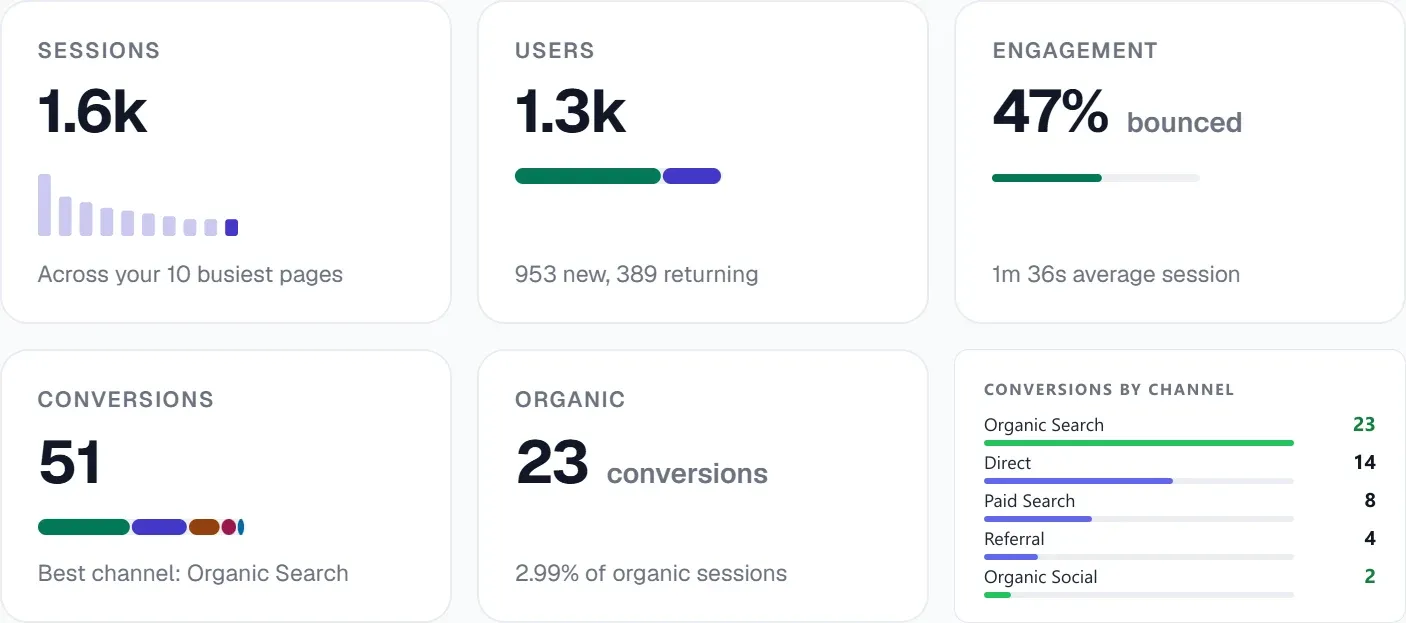
UtilitySEO provides the infrastructure to validate and expand your GA4 data. The platform integrates directly with GA4 to pull sessions, conversions, and geography data. This data sits alongside your Search Console metrics. You can see the correlation between ranking changes and conversion volumes.
The GA4 integration in UtilitySEO flags AI referral traffic. You can see if conversions come from traditional search or AI answer engines. This distinction matters for future-proofing your strategy. Use the Brand Tracking feature to monitor mentions across ChatGPT, Gemini, and Perplexity. Compare this with your conversion data to measure AI impact.
UtilitySEO also detects cannibalisation. If two pages compete for the same query, your conversion data may split. The platform identifies these conflicts. You can consolidate content to capture all conversions. The Site Health tool checks for technical issues that break conversion tracking. It scans for broken links and redirect chains. These errors prevent event firing. Fixing them ensures your GA4 data remains accurate.
You can use keyword tracking to monitor positions for your conversion-driving pages. The platform provides daily updates. You can spot drops before they affect revenue.
Conclusion
Accurate GA4 conversion tracking requires technical precision and strategic thinking. Move beyond basic event marking. Use custom dimensions and server side tagging. Troubleshoot data gaps with DebugView. Integrate GA4 with Google Ads and Looker Studio. UtilitySEO supports this process with direct GA4 integration and technical auditing. Visit the Pricing page to start your audit.
Perguntas frequentes
Events often disappear due to naming mismatches or strict data retention settings blocking historical visibility.
- Check DebugView for real-time event firing status.
- Verify event names match code and GA4 exactly.
- Review data retention periods in admin settings.
Prevent inflated data by configuring events to fire only once per session or using unique IDs.
- Use transaction IDs to identify unique purchases.
- Set event parameters to limit firing frequency.
- Filter out refreshes on confirmation pages.
Server side tagging improves accuracy by bypassing ad blockers and capturing data from users who decline cookies.
- Captures data blocked by client-side scripts.
- Ensures compliance with strict consent modes.
- Provides more reliable user behavior insights.
Add dimensions like product category or form type to understand the context behind each high-value user interaction.
- Track product categories for revenue analysis.
- Identify specific form types for leads.
- Group similar events for clearer trends.
Define key events like form submissions and phone calls as conversions to accurately measure lead generation performance.
- Mark contact form submissions as key events.
- Track phone call clicks for immediate leads.
- Monitor drop-off points in the funnel.
Saiba o que corrigir a seguir.
Analise o seu site e saiba melhor por onde começar.
Cerca de 30 segundos. Sem cartão.